When Steam shows a cloud conflict, pause before choosing a file. Work out which computer holds the progress you want, compare the timestamps with your last session, and protect any accessible local saves before overwriting them. The newest-looking entry is not a substitute for understanding your play history.
Sources checked October 3, 2026. Availability, offers and software interfaces can change.
In this guide
- What the conflict message means
- Reconstruct your last two sessions
- Make a backup you can identify
- Compare the choices carefully
- Moving between computers needs a handoff
- If the progress is already missing
- Is Steam Cloud a complete backup strategy?
What the conflict message means
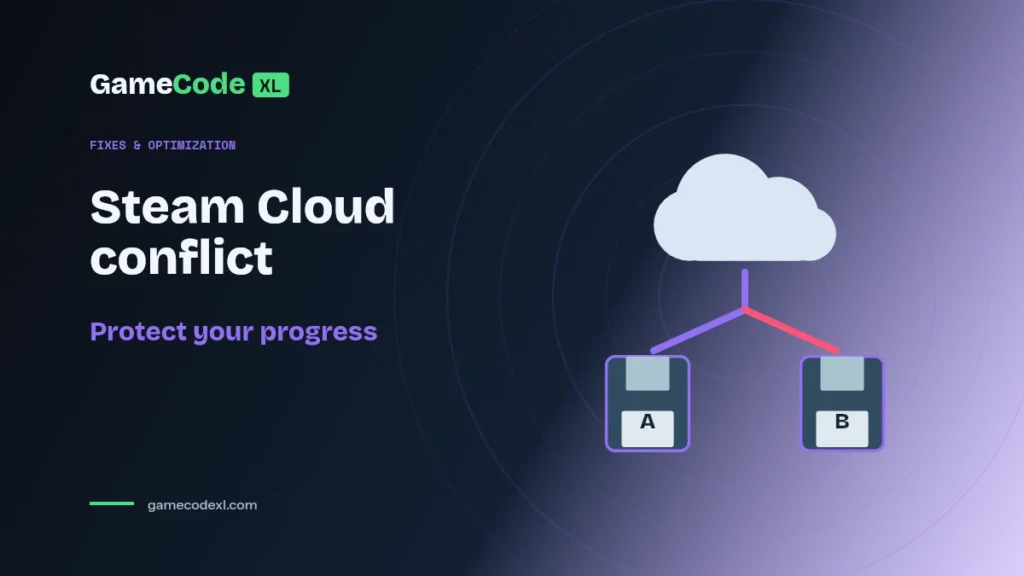
Steam displays a conflict when local and cloud files differ and it cannot automatically choose which to retain. Valve advises comparing the file times with your actual progress. Offline play can contribute because changes do not synchronize until the machine reconnects. Valve also recommends resolving a synchronization error before launching the game; ignoring it can put progress at risk. See Steam’s cloud guidance before making the selection.
Reconstruct your last two sessions
Write down the device, approximate play time, and last milestone for each recent session. Include any offline session or interrupted shutdown. You are trying to identify the desired game state, not simply the most recently touched computer.
For example, imagine you completed a quest on a laptop, then opened the game briefly on a desktop without continuing that quest. That sequence is a reason to investigate carefully; it is not proof that either timestamp must be correct. Use the information shown in your own conflict dialog.
Make a backup you can identify
Use the game developer’s documented save location. Copy the relevant personal files into a separate, clearly named backup folder if they are accessible. Label the copy with the device and date so you do not later confuse it with the working save.
Do not experiment by deleting the whole save directory. Also avoid downloading a stranger’s “recovery save” as a replacement for your own progress. A backup is valuable because it preserves an option while you investigate, not because it guarantees every game will accept every copied file.
Compare the choices carefully
Read the dialog labels in full. Identify which option represents local data and which represents cloud data, then compare that information with your session notes. If the evidence is contradictory, stop and consult the game’s support instructions rather than making a random selection.
After choosing, check the loaded character, chapter, inventory, or other recognizable progress marker before playing for another hour. Detecting an incorrect state immediately is better than adding a new session on top of the uncertainty.
Moving between computers needs a handoff
As a practical habit, finish playing on one device and confirm that its synchronization has completed before switching to another. Keep a note when you deliberately play offline. That makes a future conflict easier to interpret.
Cloud support is game-specific, and cross-platform compatibility should be checked separately. Do not assume that owning the same title on two operating systems guarantees that its saves transfer between them. Look for the developer’s explicit instructions for your combination.
If the progress is already missing
Preserve what remains on both devices. Explain to support which machine last displayed the desired progress, whether it was online, and what choice was made in the conflict dialog. Ask for the game’s supported recovery options.
Valve cautions that lost saves may not be recoverable and that Steam Support cannot resolve a conflict by choosing your files for you. Avoid services promising guaranteed recovery merely in exchange for your account login.
Is Steam Cloud a complete backup strategy?
Do not treat synchronization as an unlimited archive. For a long campaign, a separate backup made according to the developer’s instructions gives you a clearer recovery point. Keep it outside the active save folder and identify the progress it represents.