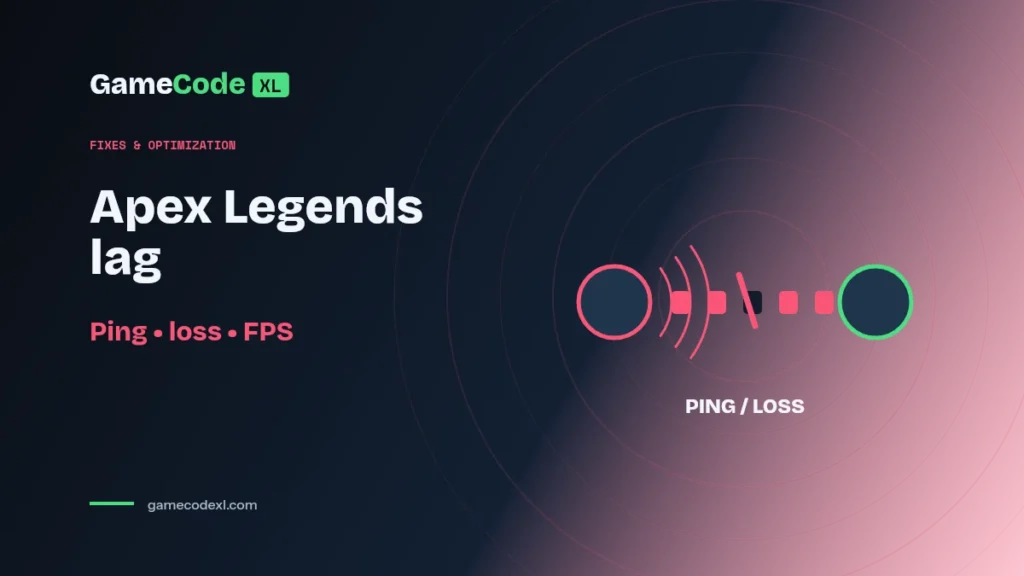
Turn on Apex Legends’ Performance Display before changing settings. It lets you compare frame rate, latency, and packet loss while the problem occurs. Those observations help distinguish a rendering issue from a network symptom and prevent you from applying a graphics fix to the wrong problem.
Sources checked October 3, 2026. Availability, offers and software interfaces can change.
In this guide
- Display the measurements first
- Record the symptom during a real occurrence
- Choose a comparison that answers one question
- Review the data center without chasing a magic number
- If the problem looks like low FPS
- If the problem looks like a connection issue
- What should a support report contain?
Display the measurements first
EA’s Apex connection guide places Performance Display under Settings, Gameplay. It shows FPS, latency, and packet loss. Ping describes the round-trip delay to the game’s data center; packet loss describes data that fails to complete that trip. EA also provides a Data Center option on the launch screen before Continue, where you can review the connection to available locations.
Record the symptom during a real occurrence
Keep a short note of what happens when the game feels wrong. Does the image become choppy while the network readings remain similar, or do latency and loss change while the frame counter stays relatively steady? You are gathering clues, not proving a cause from one number.
A menu reading is not a complete substitute for observing the moment that troubles you. Capture the match context and approximate time. Avoid recording other players’ personal information or turning a diagnostic screenshot into an accusation against them.
Choose a comparison that answers one question
If you suspect the local connection, compare the same setup under a practical alternative such as an available wired connection. Keep the game settings and other conditions as similar as possible. If you suspect rendering, compare a controlled graphics change while monitoring the network readings.
Do not combine a new data center, a VPN, a graphics preset, and a driver update in one test. Even if the next match feels better, you will not know which change deserves further attention.
Review the data center without chasing a magic number
Look at the available locations and their reported connection values. EA recommends a nearby location rather than unnecessarily routing play far away. Record the selected data center before changing it so you can explain your comparison.
Treat an improved reading as evidence for that session, not a guarantee for every match. A useful guide should help you measure your own experience instead of promising that one region is always best for everyone.
If the problem looks like low FPS
Compare the machine with the game’s requirements and record the resolution and settings in use. Use the same repeatable scene or activity when possible. The question is whether the rendering workload changes the symptom.
Keep any results specific to your hardware. Do not claim that another player will gain a particular number of frames from the same setting. Our Apex requirements guide helps establish compatibility, while this guide focuses on separating the symptom before optimization.
If the problem looks like a connection issue
Note whether other devices were using the connection and whether the symptom appears consistently or only at certain times. Check official service notices before repeatedly rebuilding your local setup. A temporary service issue is not something a graphics preset can repair.
Avoid buying a network utility based on an unverified promise to remove lag. Provide EA or your connection provider with the observed time, data center, and measurements when requesting help; let the evidence determine the next step.
What should a support report contain?
Include your platform, selected data center, approximate time, Performance Display observations, and the comparison you tried. State clearly whether the visible issue was choppiness, delayed actions, or movement correction. That is more actionable than reporting only that the game “felt slow.”
Sources and further reading
Related GameCodeXL guides
- Apex Legends system requirements: PC specs and platform breakdown
- Windows 11 windowed-game optimizations: when to test the setting